Product update
A Cloud Browser for AI Agents That Works While Your Laptop Is Shut
Your agents now have a browser that keeps working after you close your laptop, plus saved logins and one-click skills.
By Type.com Team
What's new in this Type.com update?
Type.com now has a cloud browser for AI agents. Agents and automations can open websites, sign in, click, and fill forms, and the cloud version keeps working after you close your laptop. Alongside it, you can save logins, import your Chrome sign-ins, share 1Password logins with your team, connect 28 new integrations, and install skills from the Skills Library.
Connections and APIs cover a lot of work, but not all of it. Plenty of jobs still live behind a website login: a supplier portal with no API, a carrier dashboard, a marketplace seller page, an admin screen in a tool nobody has integrated. Until now, those jobs waited for a person to open a laptop.
This update gives your agents a browser of their own, and the logins to go with it. Here's everything that changed, with links to the details.
Watch the cloud browser demo and the saved passwords demo on X.
| Change | What it does | Where to find it |
|---|---|---|
| Cloud browser | Agents and automations browse websites on Type.com, even when your laptop is closed | Browser tabs in a thread; automations use it automatically |
| This Mac browser | Agents browse in the desktop app with your local sign-ins and network | Browser menu in the Mac desktop app |
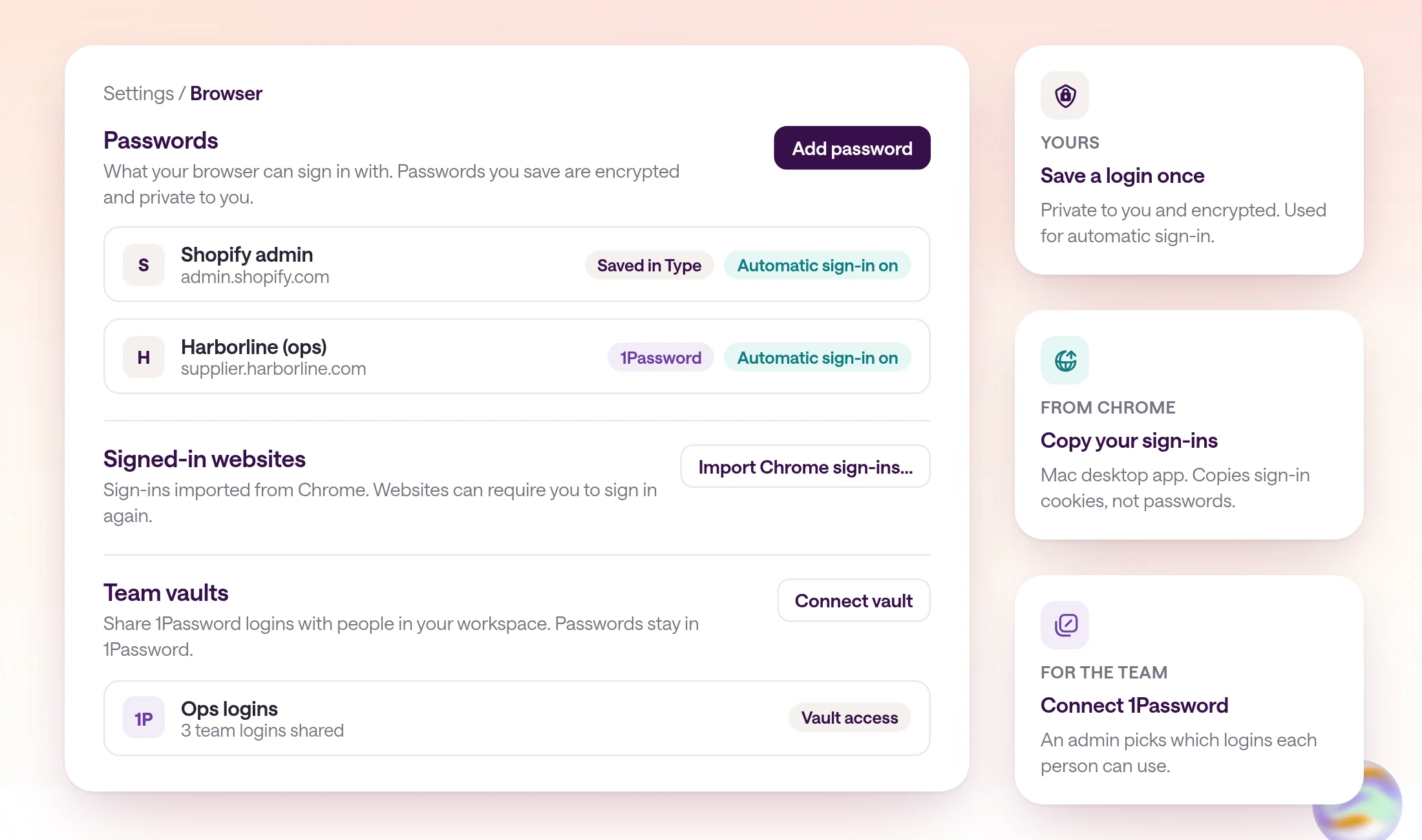
| Saved passwords | Save a login once so the browser can sign in for you | Settings → Browser → Passwords |
| Chrome sign-in import | Copies sign-in cookies (not passwords) from a Chrome profile to your cloud browser | Settings → Browser → Signed-in websites (Mac desktop app) |
| 1Password team vaults | Share chosen 1Password logins with people in your workspace | Settings → Browser → Team vaults (owners and admins) |
| 28 new integrations | Sign-in-only connections for Figma, Zendesk, Klaviyo, Airtable, and more | Connections; type.com/integrations |
| Skills Library | Reviewed, ready-made skills and skillsets you can add in one click | type.com/library/skills |
What is the Type.com cloud browser for AI agents?
The cloud browser is a real web browser that runs on Type.com instead of on your computer. Your agent opens sites, signs in, reads pages, clicks, and fills forms in it, and you can watch or step in at any time from the Browser panel.
It's for any team that has work stuck behind a website: operations teams checking supplier and carrier portals, e-commerce teams updating marketplace listings, finance teams downloading statements, and marketers pulling numbers from tools that don't have an integration yet.
Why it matters: before, an agent could only work with tools it had a connection or an API for. Now it can do the same thing you'd do by hand. Open the site, sign in, find the page, and get the job done.
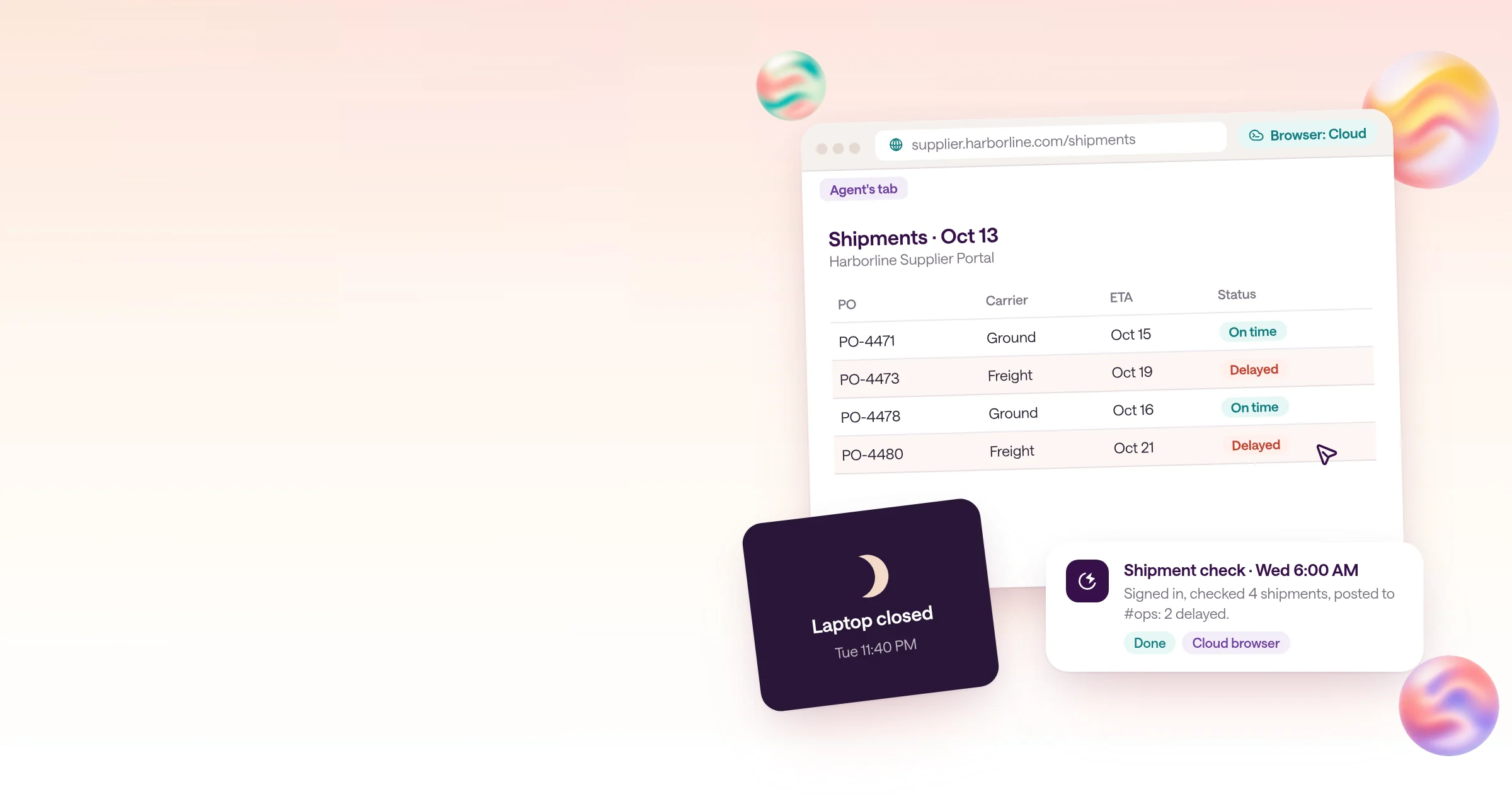
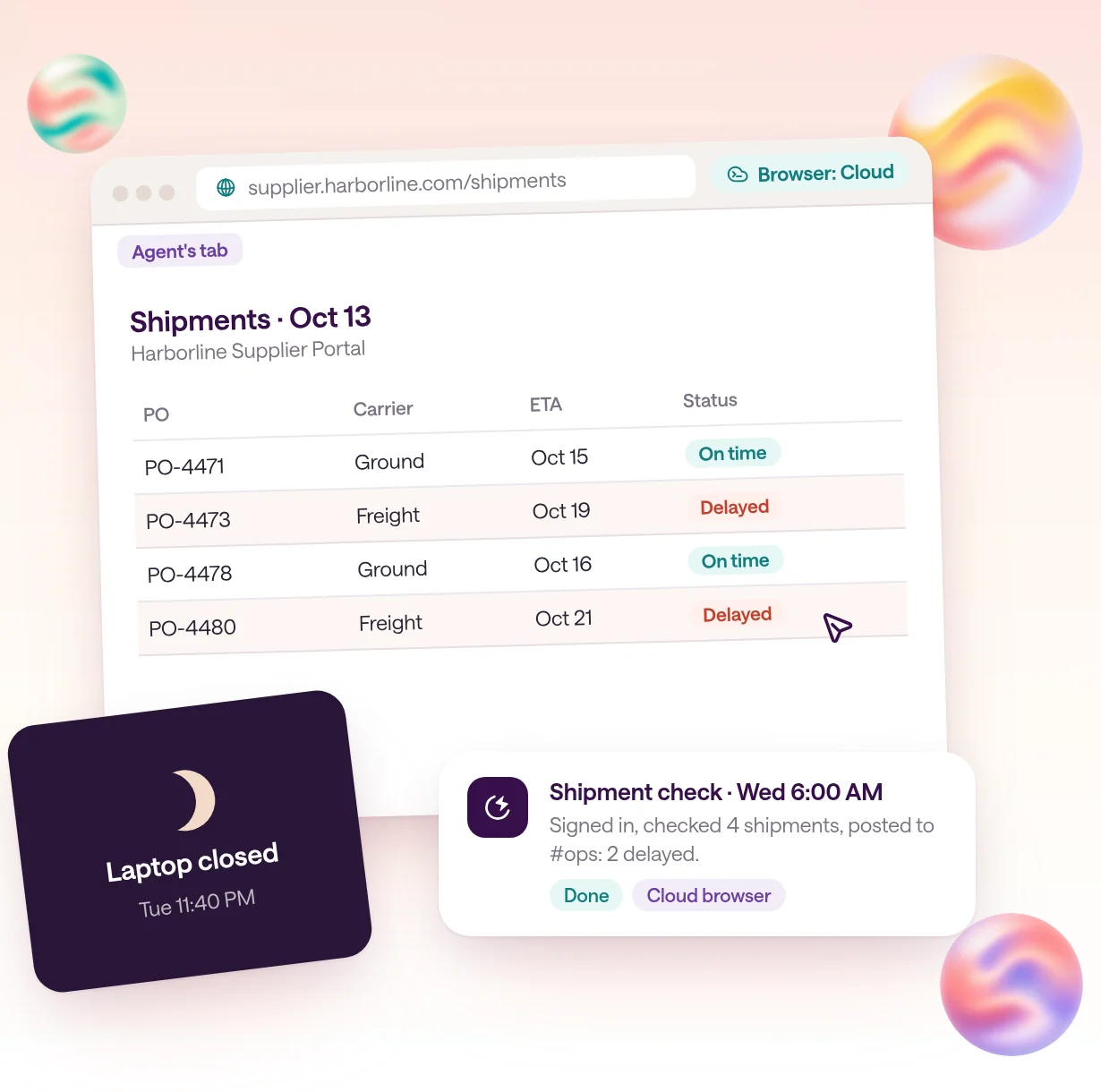
You stay in control while it works. The agent's tab is labeled Agent's tab, and you can look around, scroll, or type in the same browser whenever you want. There's no take-over button, and nothing to hand back. Hide the Browser panel or switch threads, and the work keeps going.
You can also open a browser tab yourself. In a thread, choose New tab and open a browser tab. Browser tabs belong to the thread, so switching threads restores that thread's tabs.
Should you use the cloud browser or This Mac?
Use Cloud for scheduled automations and anything that should keep going after you shut your laptop. Use This Mac in the desktop app when you want a fast, hands-on session that uses the sign-ins and network already on your computer.
In the Mac desktop app, the browser toolbar has a Browser menu with two choices. Cloud keeps working while your Mac sleeps. This Mac uses your local sign-ins and network. Pick one before a run starts. If a reply is already running, the switch happens after that reply finishes.
Your choice is saved for the thread, and your last choice becomes the default for new threads. On the web, on mobile, and from Slack, agents use the cloud browser.
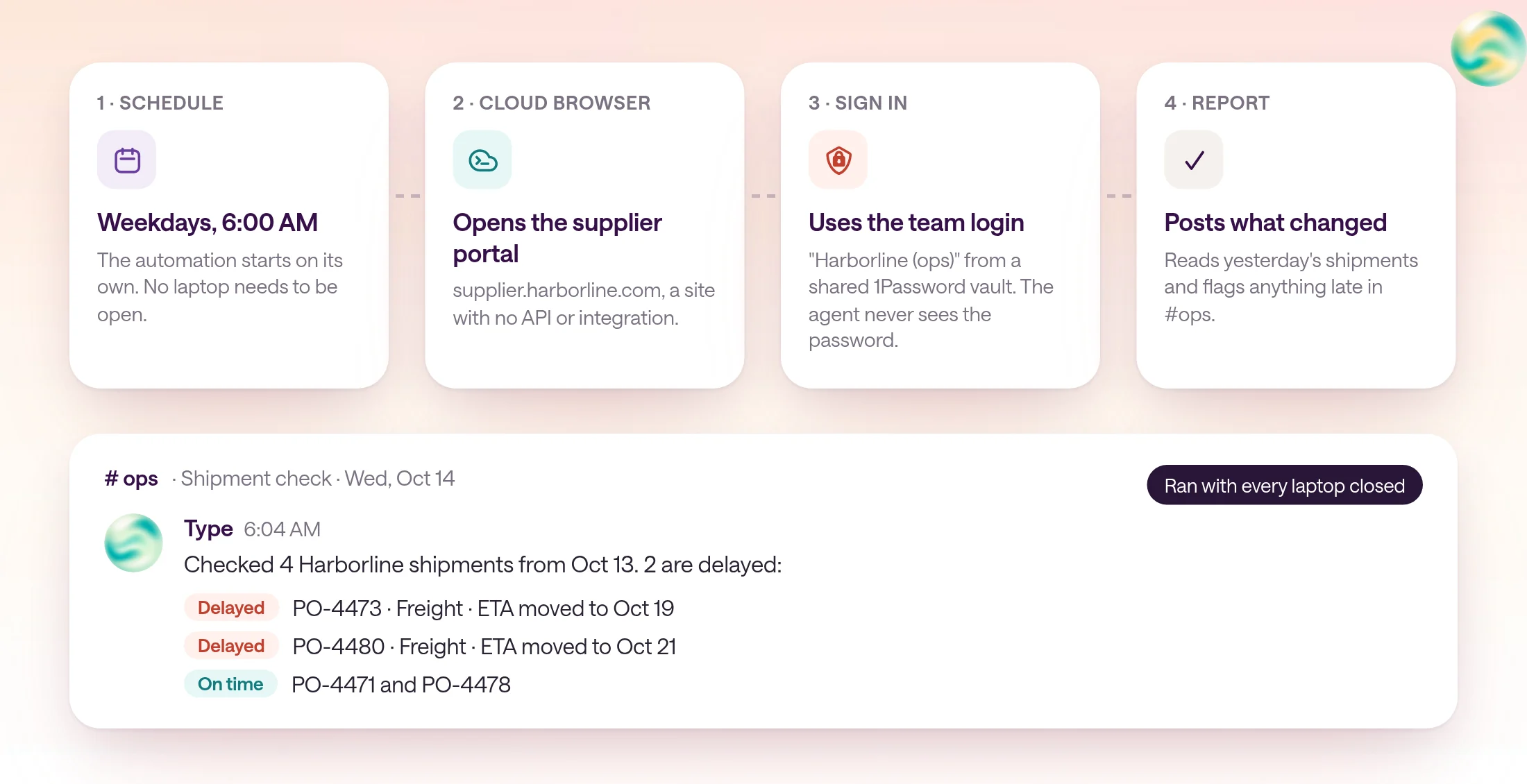
Automations always run in the cloud browser, whatever you picked in the desktop app. That's what lets a 6:00 AM check run while everyone is asleep.
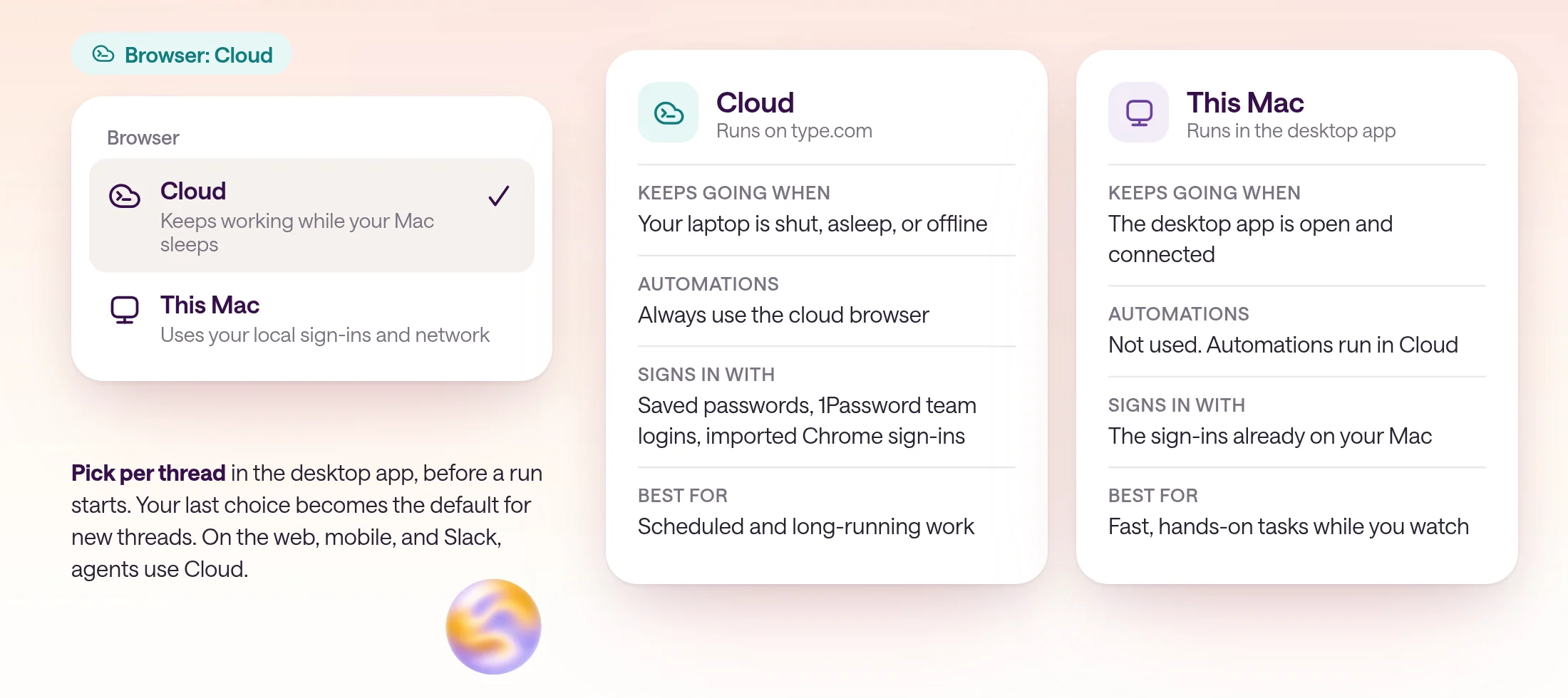
| Cloud | This Mac | |
|---|---|---|
| Runs on | Type.com | Your Mac, in the desktop app |
| Keeps going when your laptop is closed | Yes | No. The desktop app has to be open and connected |
| Used by automations | Always | No |
| Signs in with | Saved passwords, 1Password team logins, imported Chrome sign-ins | The sign-ins already on your Mac |
| Available from | Web, desktop, mobile, and Slack | Mac desktop app only |
How do you get an AI agent to use the browser?
Ask for the outcome in a thread and name the website. The agent opens it in the browser, signs in with a saved login if it needs one, and reports back. Once it works, turn the same request into an automation.
You don't need a special command. Describe the task the way you'd describe it to a coworker, including the site, what to look for, and where the result should go.
- 1
Save the login the site needs
In Settings → Browser → Passwords, choose Add password and enter the website, username, and password. Or ask a workspace admin to share a login from your team's 1Password vault.
- 2
Pick the browser
In the Mac desktop app, check that the Browser menu says Cloud if the task should keep running after you step away. On the web, the cloud browser is used automatically.
- 3
Ask for the outcome in a thread
Name the website, what to do there, and what to bring back. Say what the agent should not change, such as 'read only, don't submit anything.'
- 4
Watch, or step in
Open the Browser panel to see the agent's tab. Click in, scroll, or correct a field whenever you like. If a site asks for a verification code, you'll see a Secure sign-in step to finish.
- 5
Turn it into an automation
When the result looks right, ask for the same thing as an automation on a schedule, like every weekday at 6:00 AM. Automations always use the cloud browser.
Try this prompt
Open supplier.harborline.com and sign in with the Harborline (ops) login. Go to Shipments, check every shipment from yesterday, and list any whose ETA moved. For each delayed shipment, give the PO number, carrier, and new ETA. Post the summary in #ops. Don't change anything on the site.
What can AI agents do with a cloud browser?
Anything you'd otherwise do by hand in a website: checking portals that have no API, downloading reports and statements, updating listings, and filling in the same forms every week. Put it on a schedule and it runs while you're offline.
Fernhill's ops team used to start every morning by logging in to their supplier's portal to look for late shipments. Now an automation does it at 6:00 AM on weekdays. On Wednesday, October 14, it checked the four shipments from Tuesday and posted the two delays to #ops before anyone was online.
A few more ways teams use the cloud browser:
Operations: check carrier and supplier portals for delays, and download proof-of-delivery files into the right thread.
E-commerce: review marketplace seller dashboards that don't have an integration, and flag listings with missing details or suppressed offers.
Finance: sign in to bank or vendor portals at month-end to download statements and invoices for reconciliation.
Marketing: pull numbers from ad or affiliate dashboards your team hasn't connected, and add them to the weekly report.
Admin work: fill in the same form every week, like a timesheet or a compliance check-in, and ask for review before it's submitted.
- Use the browser for sites without an API or integration.
- Say what the agent may change, and what it must leave alone.
- Schedule repeat checks, because automations always use the cloud browser.
- Ask for only what changed, so the morning post stays short.
How do you give the browser your logins?
Open Settings → Browser. Save individual logins under Passwords, import your Chrome sign-ins from the Mac desktop app, and, if you're an admin, connect a 1Password vault for the team. Then Type.com can sign in to websites without you.
Passwords: choose Add password, then enter the website, your username, and the password, with an optional name. Leave Use for automatic sign-in on so the browser can sign in for you. Passwords you save are encrypted and private to you.
Signed-in websites: in the Mac desktop app, choose Import Chrome sign-ins, pick a Chrome profile, and select Import. This copies your sign-ins, which are the cookies that keep you logged in, into your cloud browser. It doesn't copy passwords, and some sites will ask you to sign in again. Sign-ins for Type.com and for local or private sites stay on your computer.
Team vaults: owners and admins can connect a 1Password vault and share selected logins with people in the workspace. More on that below.
Settings → Browser appears when the cloud browser is available to you. In the desktop app, the thread has to be set to Cloud.
See it in action in the saved passwords demo, or read about the Browser settings section in the docs.
How do you share 1Password logins with your team?
A workspace owner or admin connects a dedicated 1Password vault with a service account, chooses which logins to share, and sets who can use each one. Everyone signs in from their own browser, and the passwords stay in 1Password.
Team vaults are for logins the whole team relies on, like a shared supplier portal or an ads account. Nobody has to send the password around, and you can see and change who can use each login in one place.
- 1
Create a dedicated vault
In 1Password, create a vault just for the logins you want to share, and give a service account read access to it. Built-in Personal and Private vaults can't be connected.
- 2
Connect it in Type.com
In Type.com, go to Settings → Browser → Team vaults and choose Connect vault. Paste the service account token, choose Find vaults, then pick your vault.
- 3
Choose the team logins
In Choose team logins, select the logins to share. Leave out anything the team shouldn't use.
- 4
Set permissions per login
For each login, choose who can use it: everyone with vault access, specific people, or no one yet. You can change this later or disconnect the vault.
Can the AI agent see your passwords?
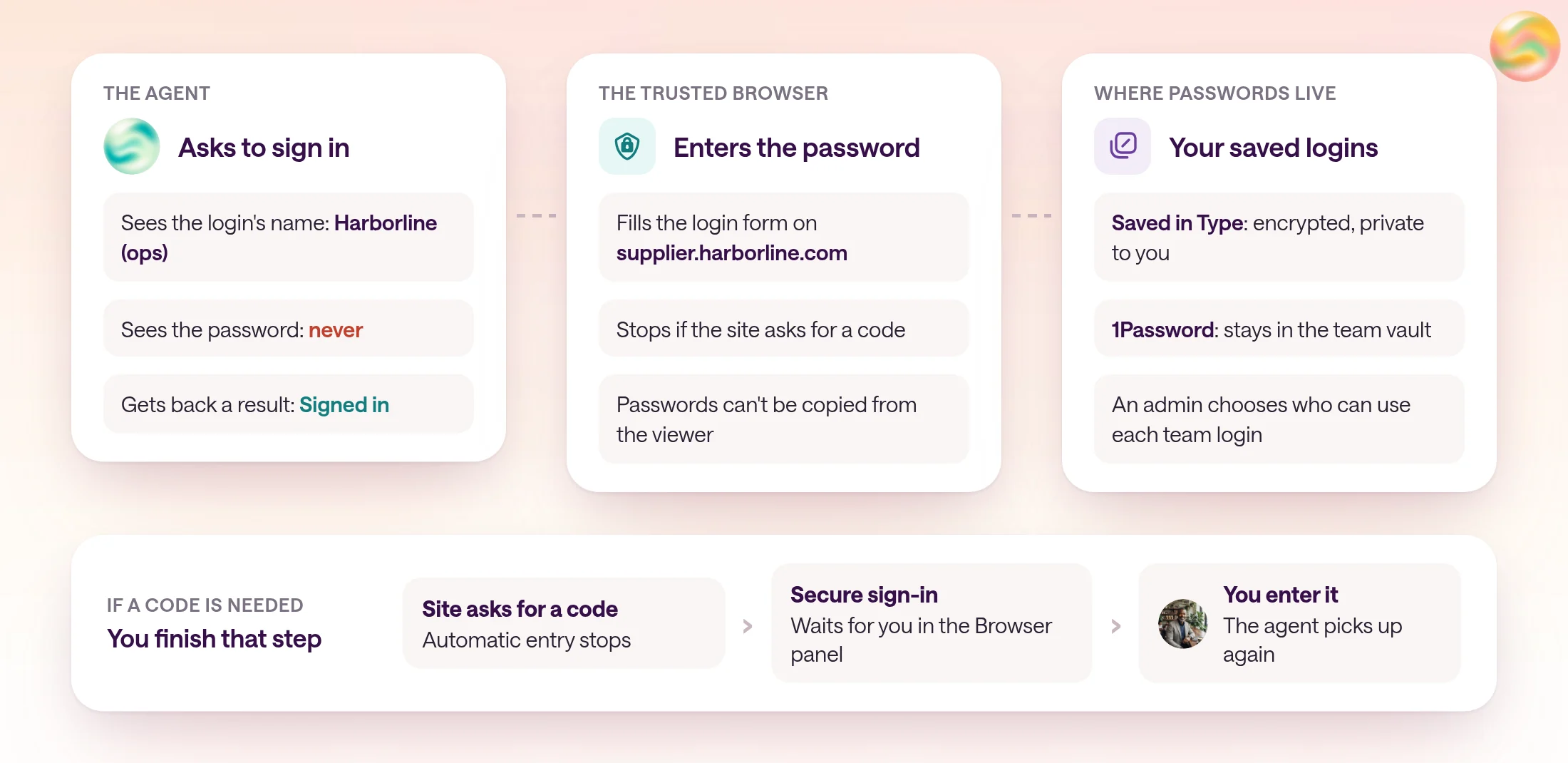
No. Type.com enters passwords in a trusted browser the agent can't inspect. The agent only knows the login's name and whether sign-in worked. If a site asks for a verification code, the browser stops and you finish that step.
When an agent needs to sign in, it asks for a saved login by name, for example Harborline (ops). Type.com fills in the credentials inside a trusted browser that the agent can't read or script, then tells the agent whether it worked. The agent is told never to ask for passwords or verification codes in chat.
Verification codes and other human checks stay with people. When a site asks for one, automatic entry stops and the sign-in waits as Secure sign-in in the Browser panel. Finish it there and the agent continues. Passwords can't be copied out of the browser viewer either.
Some sites still need a person. Logins that ask for a verification code, login forms the browser can't identify with confidence, and imported sign-ins that expire will all need you to sign in by hand from time to time.
Which new integrations can your agents use?
28 tools, including Figma, Zendesk, Klaviyo, and Airtable, now connect by signing in, with no API key. Agents can use each one alongside the browser and everything else you've connected.
The browser handles sites without an integration. For tools that have one, a connection is faster and gives the agent structured data. This update added 28 of them across design, marketing, sales, support, e-commerce, projects, files, engineering, and finance.
A few highlights: Figma, Zendesk, Klaviyo, Airtable, Gorgias, Help Scout, Google Search Console, and Xero.
See the full list on the newly added integrations page, or read New Native Integrations in Type.com for how to connect them and what teams do with them.
What is the Type.com Skills Library?
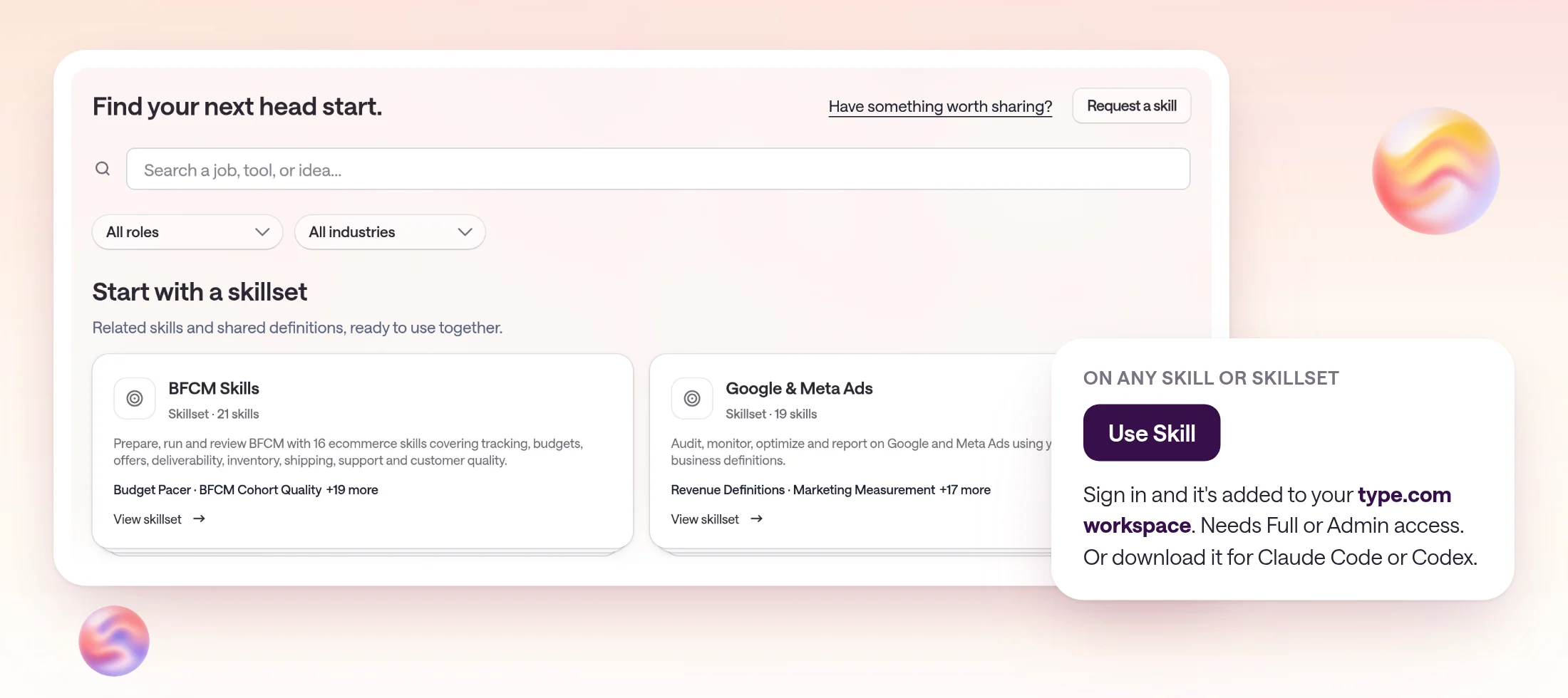
The Skills Library is Type.com's public catalog of ready-made skills, reviewed by the Type.com team. Browse by role or industry, then choose Use Skill to add a skill or a whole skillset to your workspace in one click.
A skill is a reusable set of instructions, and sometimes scripts, that teaches an agent how your team does a job. The library gives you a head start on common ones for sales and marketing, ads, e-commerce, finance and operations, customer success, and engineering. Filter by role, or by industry: B2B, Ecommerce, or Agencies.
Skillsets bundle related skills and shared definitions so you can add them together. The Type.com team curates them. Adding a skillset makes its skills available in your workspace, and you still decide when each one runs.
Good places to start: the Google & Meta Ads skillset, Ecomm Starter Skills, Daily Revenue Check, Pre-Call Briefing, and Month-End Close Checklist.
- 1
Browse the library
Go to type.com/library/skills. Search for a job, tool, or idea, or filter by role and industry.
- 2
Choose Use Skill
Open a skill or skillset and choose Use Skill. If you're signed out, you'll sign in first and pick up where you left off.
- 3
It's added to your workspace
The skill is added to your Type.com workspace, along with anything it needs. Installing needs Full or Admin access in the workspace.
- 4
Use it
Ask an agent to use it in a thread, or add it to an automation. Prefer Claude Code or Codex? Download the skill instead.
What should you try first?
Pick one website task you do by hand every week, save its login, ask an agent to do it once in a thread, and then schedule it. Add a skill from the library if one already covers the job.
Read more about automations, skills, and connections in the Type.com docs.
- The cloud browser lets agents work on any website, even with your laptop closed.
- Automations always use the cloud browser. This Mac is for hands-on sessions in the desktop app.
- Save logins once. The agent never sees the password.
- Chrome import copies sign-ins, not passwords. Team logins come from 1Password.
- 28 new integrations connect by signing in, and the Skills Library adds ready-made skills in one click.
Frequently asked questions
Does the cloud browser keep working when my laptop is off?
Yes. Automations always use the cloud browser, which runs on Type.com rather than on your computer. A scheduled run can open a website, sign in with a saved login, and post the result while every laptop on your team is closed.
Can the AI agent see my passwords?
No. When an agent signs in, Type.com enters the saved password in a trusted browser that the agent can't inspect. The agent only sees the login's name and whether sign-in worked. Passwords also can't be copied out of the browser viewer.
Can I import my saved passwords from Chrome?
Not passwords. In the Mac desktop app, Import Chrome sign-ins copies the sign-in cookies from a Chrome profile into your cloud browser, so you stay signed in to those sites. Passwords aren't copied, and some sites will ask you to sign in again. Add passwords one at a time under Settings → Browser → Passwords.
Which password managers can I connect for my team?
1Password. A workspace owner or admin connects a dedicated vault with a 1Password service account, picks which logins to share, and sets who can use each one. Passwords stay in 1Password.
What happens when a website asks for a verification code?
The browser stops and hands that step to you. The sign-in waits as Secure sign-in in the Browser panel. Enter the code there, and the agent picks the task back up.
When should I use the browser instead of an integration?
Use a connection whenever the tool has one, because it's faster and more structured. Use the browser for everything else: supplier and carrier portals, government and bank sites, admin pages, and any tool without an API or integration.