Operations guide
How to track every AI agent your company runs
Build one inventory of every automation, with its owner, its runs, and its cost, and bring the personal ones into shared Spaces.
Why do AI automations get hard to track?
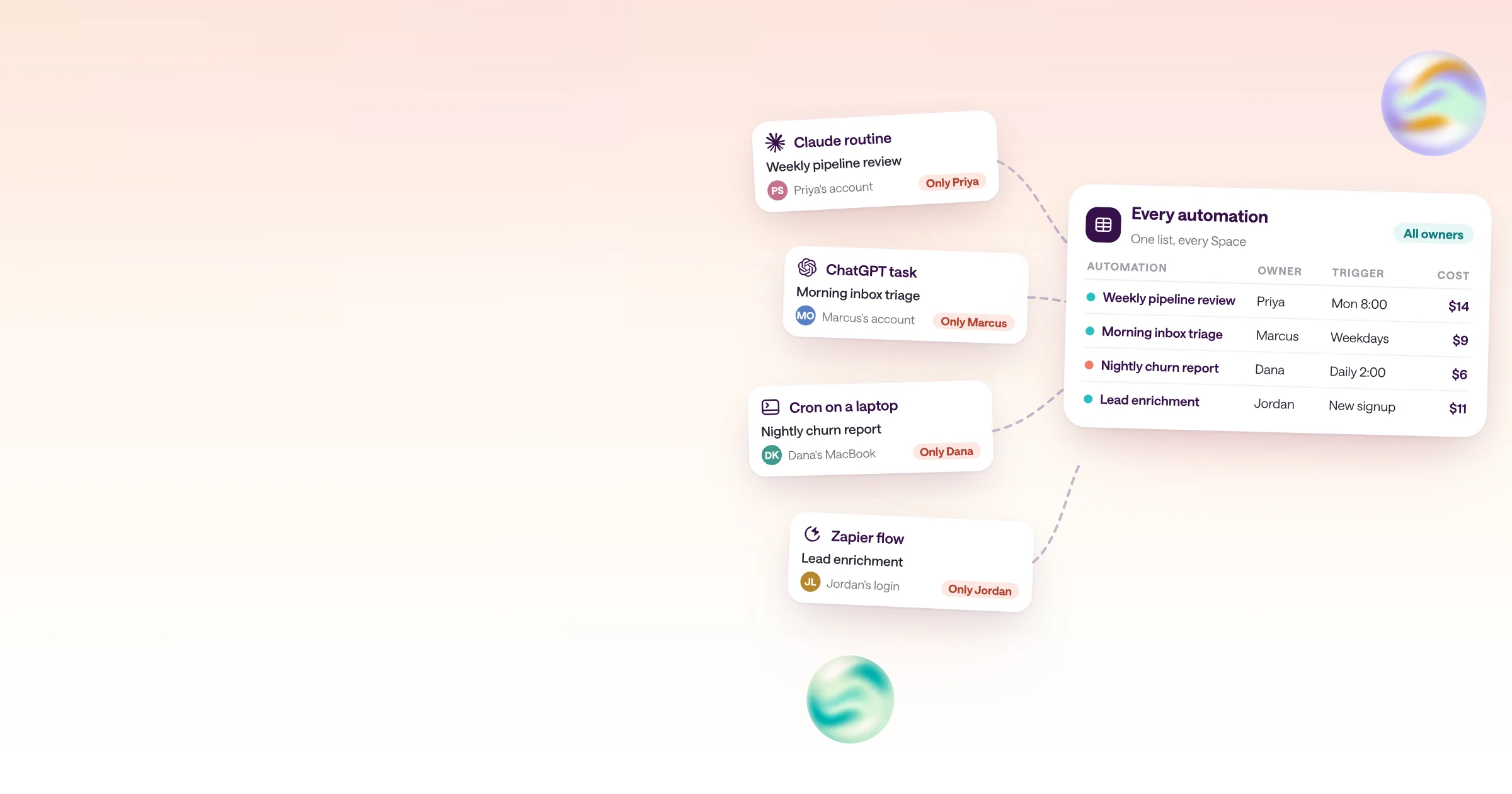
Because most of them start in someone's personal account. A Claude routine, a ChatGPT scheduled task, or a cron job on a laptop works for the person who set it up, but nobody else can see it, fix it, or tell what it costs.
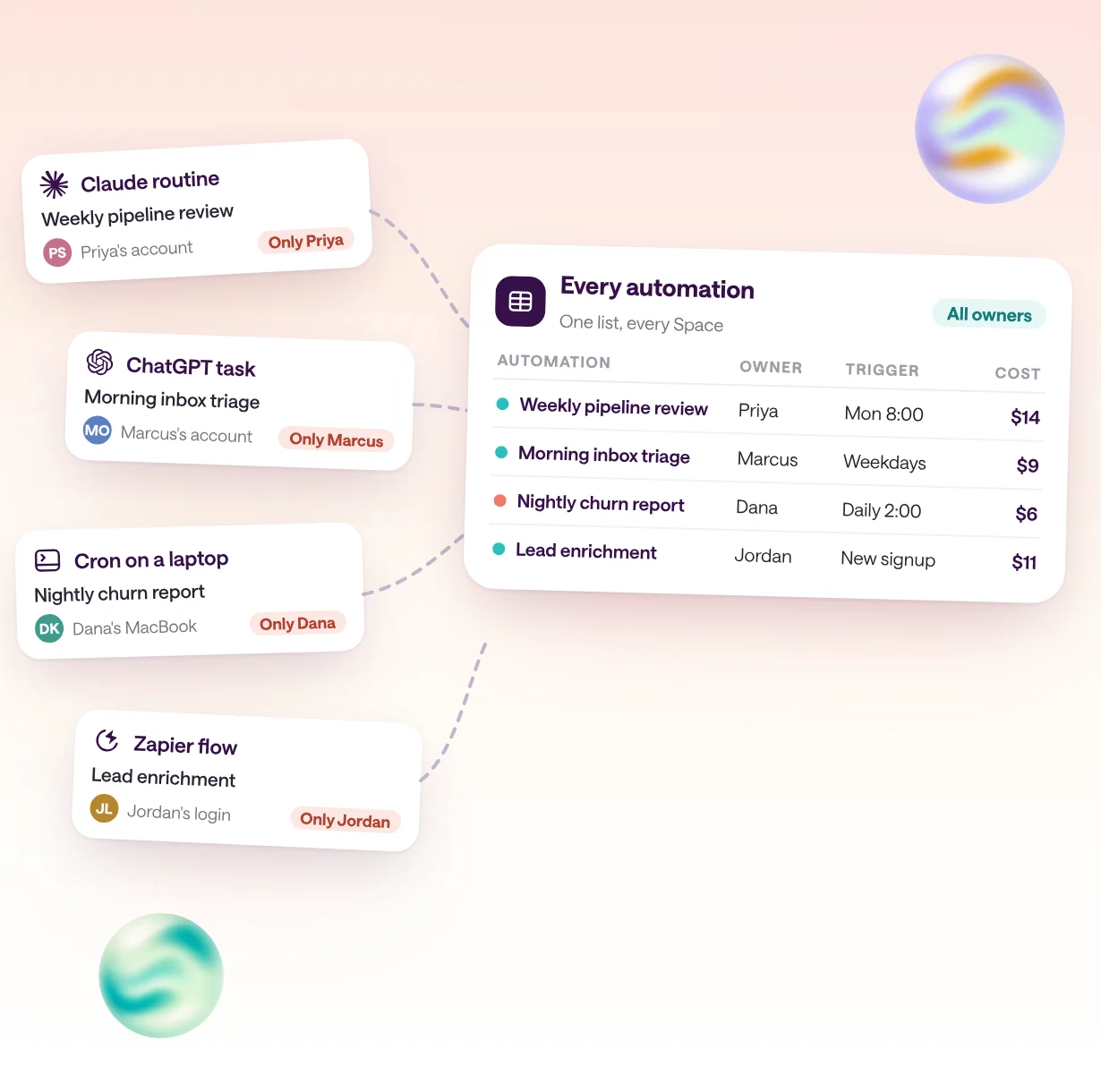
Claude, ChatGPT, and Codex can all run work on a schedule, and each ties that work to a person. Claude Code routines belong to one claude.ai account and act as that person. Claude's desktop scheduled tasks run only while the app is open and the computer is awake. In ChatGPT, scheduled tasks live in the account that created them, up to 15 active tasks on Pro and Enterprise plans, and sharing a task gives the other person a separate copy in their own account. Codex has automations of its own.
Add the cron jobs on laptops, the scheduled GitHub Actions workflows in individual repositories, and the Zapier or n8n flows with an AI step, and nobody has the whole list.
That's fine until something changes. The person leaves and the task stops, or keeps running with access nobody reviews. A tool changes its API and a report quietly goes wrong. The cost lands on a personal plan or an expense report. You can't fix what you can't see, so the first job is an inventory.
What should an AI automation inventory include?
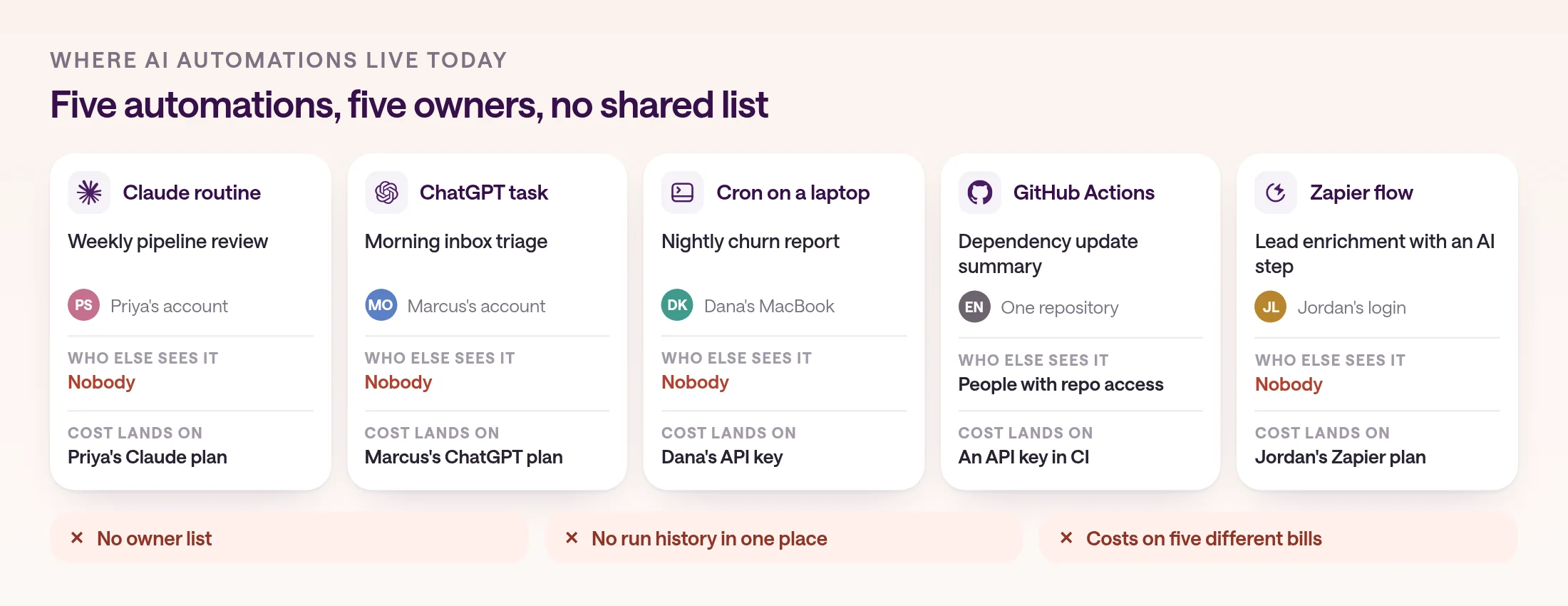
For each automation, record what it does, who owns it, what starts it, which accounts it acts as, what it can change, whether its last runs worked, and what it costs. Those seven fields answer most questions before anyone opens a log.
Keep the inventory short enough that people actually update it. A spreadsheet works for the first pass. What matters is that every automation has a named owner, that you know whose access it uses, and that someone notices when it fails or gets expensive.
The two fields teams most often skip are the accounts an automation acts as and what it can change. They decide what a mistake costs. A report that reads the CRM with a team account is low risk. A task that writes to customer records with one person's login is not.
| Field | Why it matters | Where type.com shows it |
|---|---|---|
| Purpose | So someone else can tell whether it's still needed | The automation's instructions or code |
| Owner | Who fixes it, and whose access a scheduled run uses | The owner column in Analytics; admins can reassign it |
| Trigger | When it runs: a schedule, a webhook, Slack, or an app event | The automation's settings |
| Accounts it acts as | Whose name is on its writes, and what breaks if they leave | The Space's personal and organization connections |
| What it can change | Write access is where mistakes get expensive | The connections assigned to the Space |
| Health | Failing, waiting on a person, paused, or never run | The Health tab's Automations table |
| Cost | Which automations are worth what they spend | The Cost tab and type-cli automations costs |
How do you find the automations people already run?
Ask the team, then check the places personal automations live: AI chat apps, coding agents, laptops, repositories, and workflow tools. Record each one, even if you plan to retire it.
A short survey finds most of them. Ask everyone the same three questions: what runs on a schedule or a trigger on your behalf, which accounts does it use, and what would break if it stopped tomorrow. Then check the usual hiding places yourself, because people forget the automations that work.
Don't switch anything off during the inventory. Some of the oldest automations are the ones a team quietly depends on, and the owner is the fastest way to learn what each one is for.
- Claude: routines in Claude Code, and scheduled tasks in the desktop app.
- ChatGPT: the Scheduled page, including event-triggered tasks, and Codex automations.
- Laptops and servers: crontab and launchd entries that call claude -p or other AI CLIs.
- Repositories: GitHub Actions workflows with a schedule trigger.
- Workflow tools: Zapier, Make, and n8n flows with an AI step.
- Spreadsheets and docs: scripts with time-based triggers.
How do you see what each automation did?
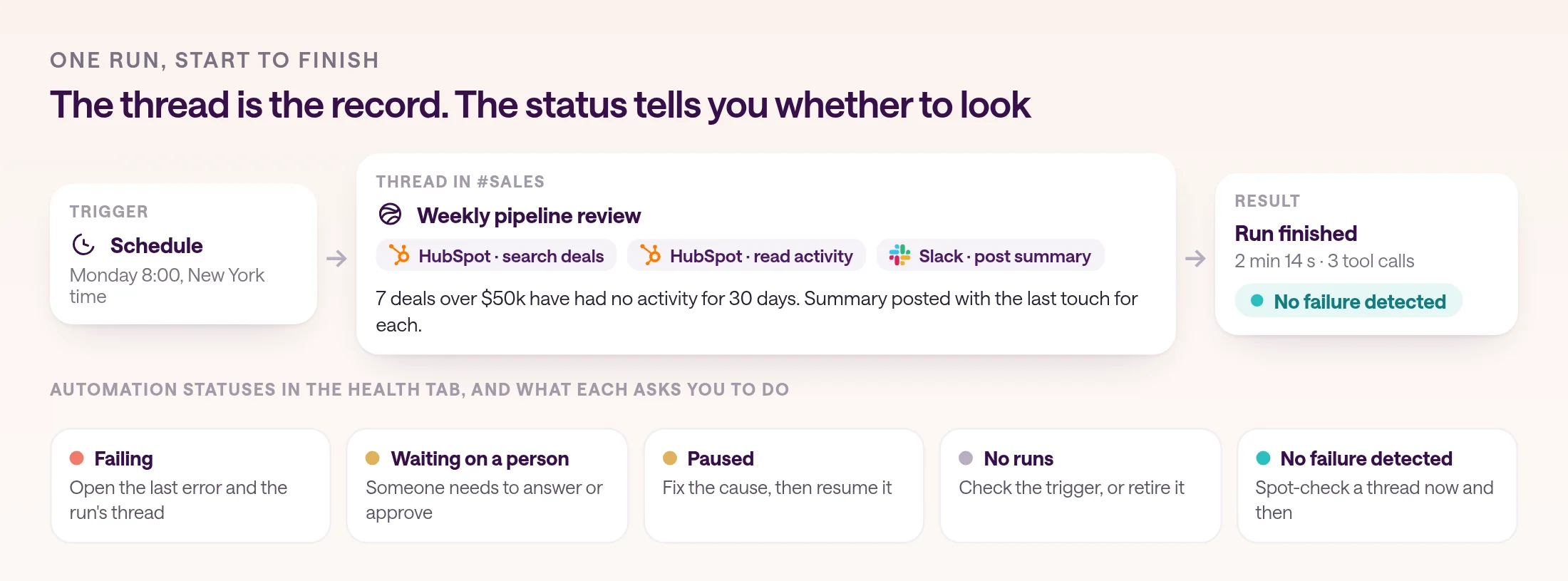
Keep a record of every run: what started it, which tools it called, what it changed, and whether it finished. On type.com, each run of a managed agent automation leaves a thread with its messages and tool calls.
For anything that writes to a shared system, the team needs a record of each run that anyone can open: what started it, which tools it called, and what it changed. Personal tools keep that record in one person's account, and failures reach only that person, if anyone.
In type.com, each run of a managed agent automation makes a thread. Open it to see the agent's messages and tool calls. The automation's run history lists each run's status, time, deliveries, steps, and errors. For admins, Settings → Analytics → Health lists every automation in the workspace with its owner, Space, status, runs, AI cost, last run, and last error. It shows failing automations first. Select All to see the full inventory.
Know what the dashboard doesn't cover. type.com's docs say the Health view doesn't measure application uptime, missed schedules, queue delay, or integration sync freshness, and that no findings doesn't prove everything is healthy. For a deeper look, type-cli automations history lists failed runs grouped by reason, and can show the recorded tool and action steps of a single run.
How do you see what each automation costs?
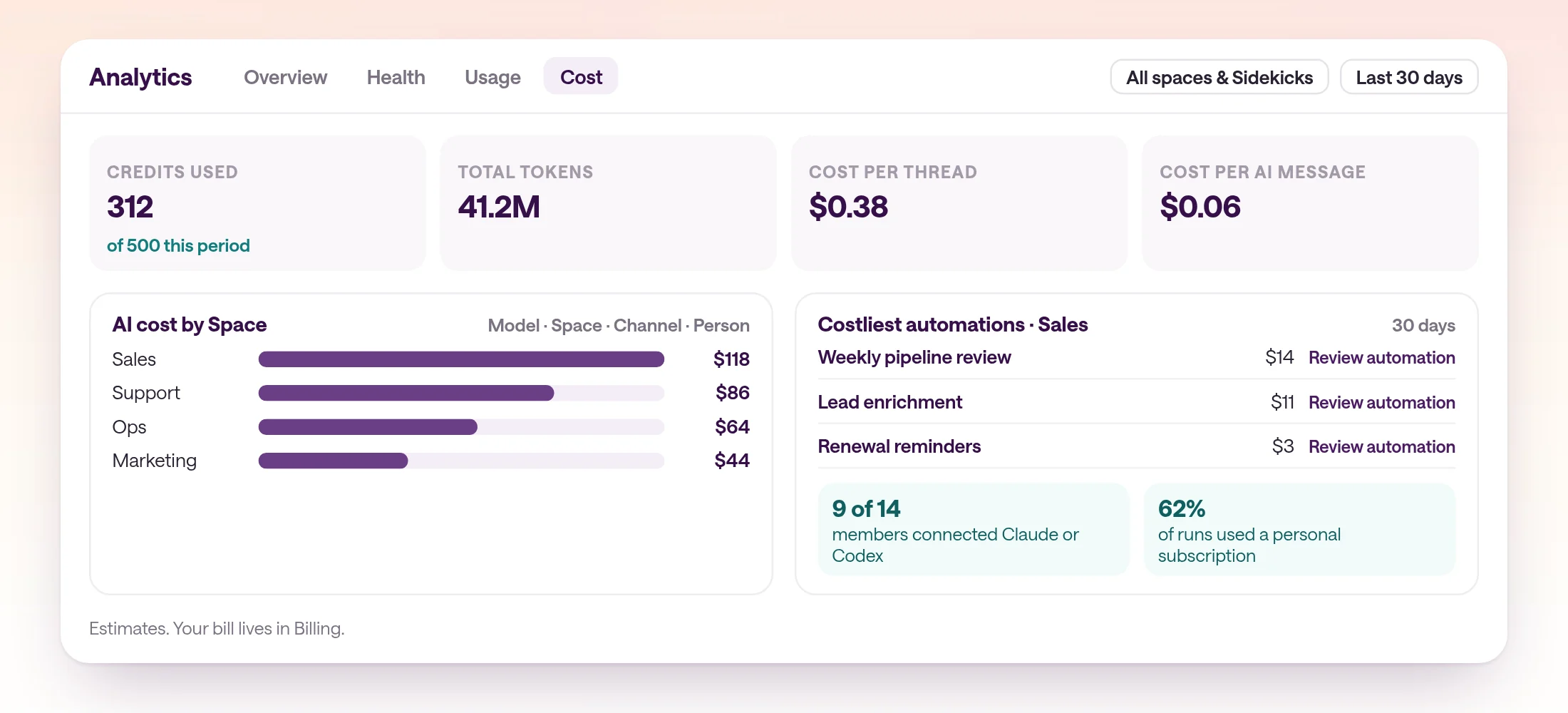
Track AI spend by Space, person, model, and automation, and look at the costliest automations every month. type.com's Cost tab breaks spending down this way, and admins can pull costs per run from the CLI.
AI costs hide in the same places as the automations. When people run tasks on personal plans, the spend is scattered across expense reports, and no one can say which automation is worth it. Put the work where the usage is metered in one place, then review it by team.
In type.com, the Cost tab shows type.com credits used, total tokens, cost per thread and per AI message, and the trend. You can break spending down by model, Space, channel, or person, and each Space opens a detail view with its costliest automations. A personal subscription coverage card shows how many members connected their own Claude or Codex subscription. The numbers are estimates; the bill itself lives in Billing.
For per-run numbers, admins can use type-cli automations costs, grouped by Space, automation, or run. It reports two views that you shouldn't add together: billable usage against the plan's allowance, and raw tokens valued at API rates, which also covers runs paid by personal subscriptions.
Limits apply to the workspace as a whole. Admins get a notice at about 80% of the monthly allowance, and at 100% new AI work pauses unless auto-upgrade is on. There's no budget per automation or per Space, so the monthly review is where you catch an automation that costs more than it's worth.
type-cli automations costs --space sales --basis raw-tokens --since 7d \
  --group-by run --sort cost-desc --limit 10
How do you bring personal automations into one place?
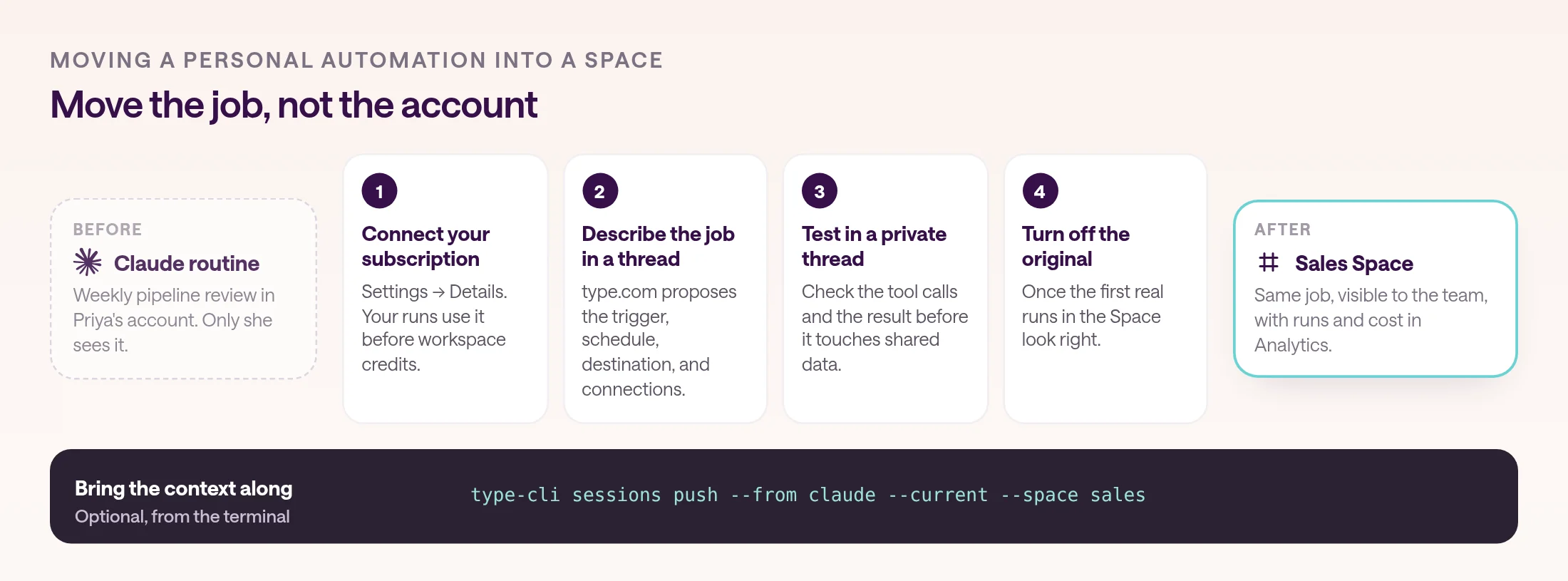
Recreate each one in a shared Space where the team can see it, its runs, and its cost. Connect personal Claude or ChatGPT subscriptions so runs can still use them, and retire the original once the shared version works.
Start with the subscription. In type.com, each person can connect their own Claude or ChatGPT subscription. Agent turns they start and automations they create then run through it first, without drawing down the workspace's allowance, so moving a job to a shared Space doesn't have to change who pays for it.
Then recreate the automation. There's no importer for ChatGPT scheduled tasks or Claude routines, so copy the instructions into a thread in the right Space and describe the job. type.com proposes the automation with its trigger, schedule, destination, and connections, and a new automation stays off until you start it. Test it in a private thread before it touches shared data.
Bring the context along. type-cli sessions push copies a Claude Code or Codex session into a new thread in the Space, so the reasoning behind a script isn't lost, and type-cli skills sync uploads local skill folders so the shared version follows the same steps.
- 1
Connect your AI subscription
In Settings → Details, connect your Claude or ChatGPT subscription so your runs use it before workspace credits.
- 2
Describe the job in the right Space
Paste the old instructions into a thread and confirm the trigger, schedule, destination, and connections type.com proposes.
- 3
Bring the context
Push the Claude Code or Codex session with type-cli sessions push, and sync any local skills to the Space.
- 4
Test, then switch over
Run it in a private thread, start the automation, and turn off the personal original once the first real runs look right.
Who should own each AI automation?
A named person, inside a shared Space, using team accounts for team work. When that person leaves, an admin reassigns the automation instead of letting it break or keep acting as them.
Scheduled runs in type.com use the creator's identity, model credentials, and billing context. That's the right default for personal work, and the reason team automations should use organization connections, such as the CRM account the whole sales team relies on, rather than one person's login. Admins can reassign an automation's owner when someone changes roles or leaves.
Decide what failure looks like before it happens. type.com pauses a scheduled instruction automation after three failed runs in a row, and those pauses show up under Needs attention in the Health tab. For the access side, see how to give AI agents access without exposing credentials, and for actions that need sign-off, human-in-the-loop approval workflows.
- Every automation has a named owner and lives in a shared Space.
- Team work uses organization connections, not one person's login.
- Reassign owners as part of offboarding.
- Someone checks Needs attention every week.
How do you run a regular AI automation review?
Every week, fix what's failing. Every month, sort by cost, retire what nobody uses, and ask the team what new personal automations they've built.
An inventory is only useful if it stays current. Fifteen minutes a week keeps failures from piling up, and a monthly pass keeps costs and duplicates in check.
- 1
Clear Needs attention
Open Settings → Analytics → Health and work through failing and blocked automations, including any paused after repeated failures.
- 2
Check the full inventory
Select All in the Automations table. Look for automations with no runs, missing owners, or owners who changed roles.
- 3
Review the costliest automations
On the Cost tab, open each busy Space and check whether its costliest automations are worth what they spend.
- 4
Retire and merge
Turn off automations nobody reads, and merge duplicates that do the same job for different people.
- 5
Ask what's new
Ask the team which personal automations they've started, and bring the useful ones into a shared Space.
Frequently asked questions
How do I see all the AI agents running in my company?
Start an inventory with seven fields for each automation: purpose, owner, trigger, the accounts it acts as, what it can change, health, and cost. Then move the automations people run in personal accounts into a shared workspace. In type.com, admins see every automation in Settings → Analytics → Health, with its owner, Space, status, runs, AI cost, last run, and last error.
How do I track AI agent costs by team?
Break AI spend down by Space, person, model, and automation, and review the costliest automations every month. type.com's Cost tab shows these breakdowns for admins, and type-cli automations costs groups costs by Space, automation, or run.
Can I see what an AI agent did on each run?
On type.com, yes. Each run of a managed agent automation leaves a thread with the agent's messages and tool calls, and the automation's run history shows each run's status, time, steps, and errors. Admins can also list failed runs by reason with type-cli automations history.
What happens to an automation when its owner leaves?
A scheduled automation runs with its creator's access and billing context, so an orphaned one can break or keep acting as someone who left. In type.com, an admin can reassign the owner. Use organization connections for team work, so access doesn't depend on one person.
Can I import automations from ChatGPT or Claude?
Not directly. There's no importer for ChatGPT scheduled tasks or Claude routines, so recreate each one from its instructions. On type.com, describe the job in a thread and type.com proposes the automation, and type-cli sessions push brings a Claude Code or Codex transcript into a Space for context.
What can admins see about each person's AI use?
In type.com's analytics, admins see cost, activity, and automation counts for each person's Sidekick. They can't open those conversations, artifacts, or personal automation details through Analytics.