Product update
The Type.com AI Agents iPhone App: Run Your Agents From Your Phone
Run your agents and automations from your iPhone, chat with your team beside them, and change their mind mid-task.
By Type.com Team
What's new in this Type.com update?
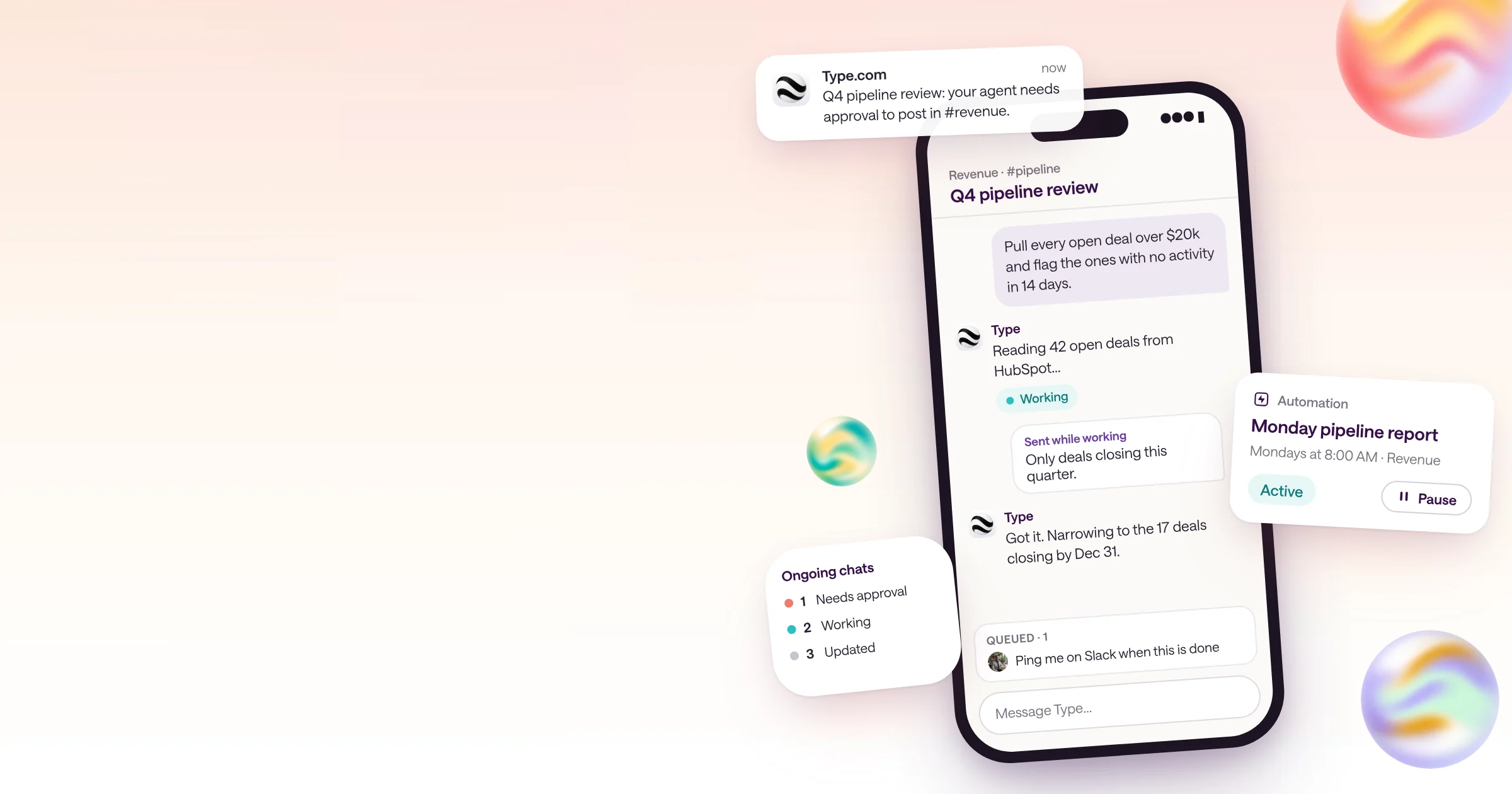
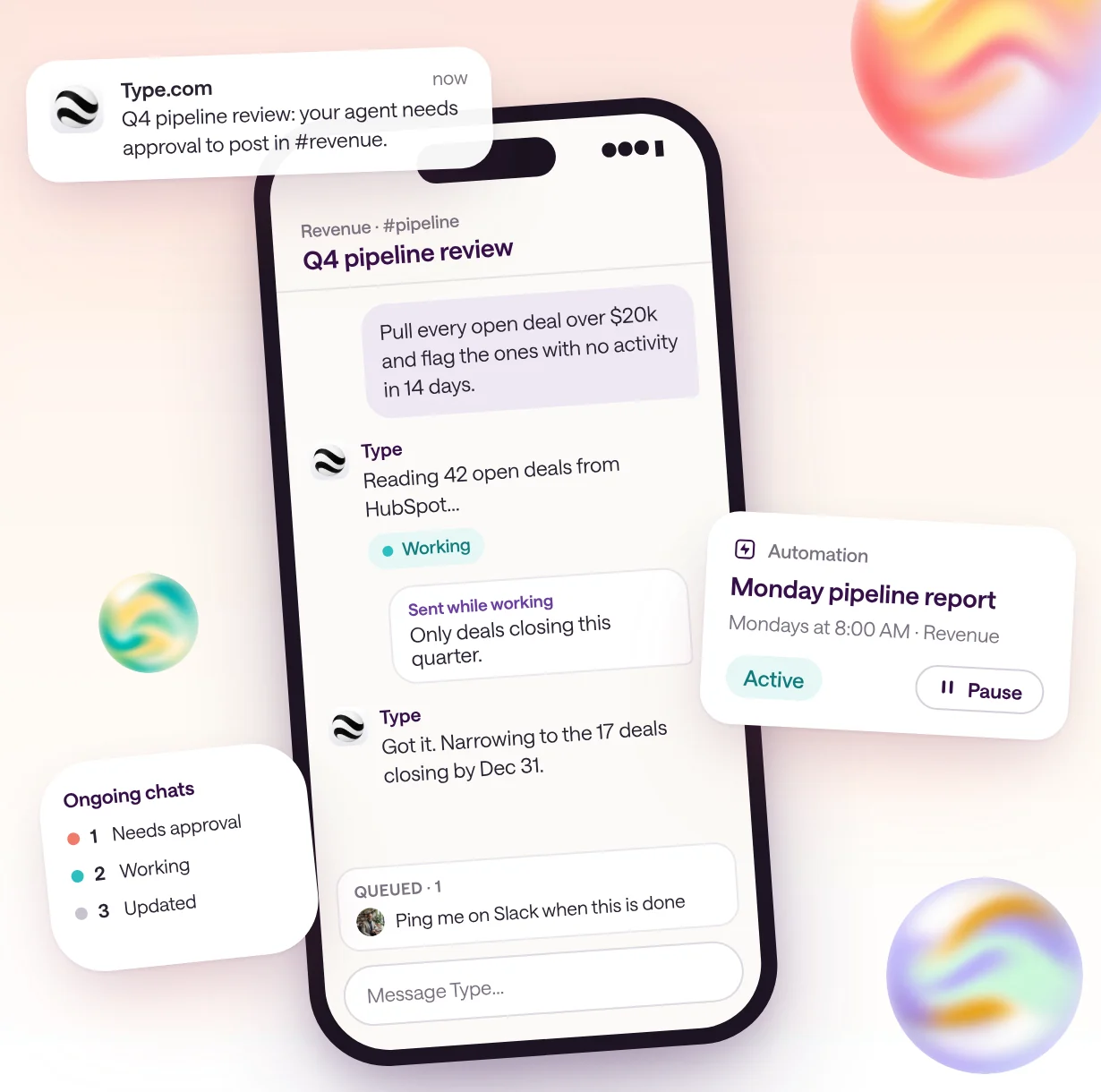
Type.com's AI agents iPhone app is live on the App Store. You can message your agents, pick up threads, and manage automations from your phone. On the web, you can now chat with your team beside the agent, steer an agent while it works, and queue what comes next.
Agent work doesn't stop when you leave your desk. An automation needs attention at 7:00 AM, a teammate asks for a number while you're in a cab, or the agent you started before lunch needs one more instruction. Until now, all of that waited for a laptop.
This update puts your agents on your iPhone and makes threads work better with more than one person in them. Here's everything that changed, with links to the details.
Watch the iPhone app video, the team chat demo, and the steering and queuing demo on X.
| Change | What it does | Where to find it |
|---|---|---|
| iPhone app | Message agents, follow threads, open the library, and manage automations from your phone | App Store: Type.com: AI Agents for Teams |
| Automations on iPhone | Browse, search, check status, and pause or activate automations | Spaces → Automations in the app |
| Team chat | A people-only chat beside the agent thread. The agent reads it but never replies | Team chat button in a thread header (web app) |
| Add to team chat | Highlight text in an agent reply and quote it in team chat | Select text in a thread |
| Steering | Send a correction to a running reply you started, and it adjusts without restarting | Thread composer (web app) and Slack |
| Shared queue | Queue the next prompt, yours or a teammate's, and it runs when the agent is free | Queue in the composer, or Cmd/Ctrl+Enter while it works |
| Live build recording | Rebuilding the Claude Code team's code review system, plus a bug-fix loop | YouTube |
What can you do with the Type.com iPhone app?
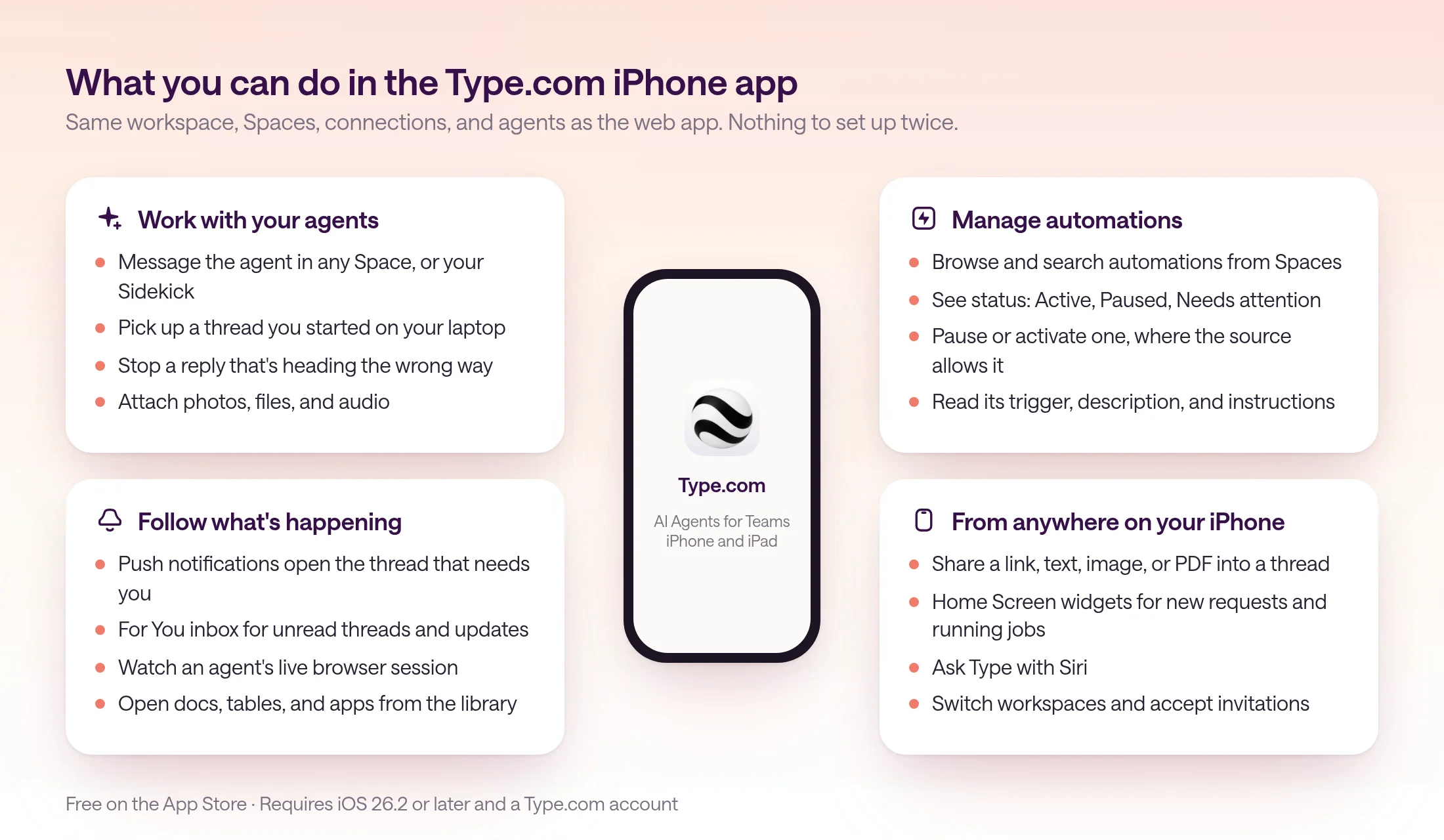
Everything you need to keep agent work moving away from your desk: message the agent in any Space or your Sidekick, follow threads and approvals through push notifications, open documents and apps, and check or pause automations.
The app connects to the same workspace you use on the web. Your Spaces, connections, skills, and context are already there, so there's nothing to set up again. Ask for something on your phone and the agent works with the same tools it uses everywhere else.
It's for anyone whose agents keep working after they leave their desk: founders and managers approving work between meetings, sales and customer teams who live on their phones, and operators who own automations that sometimes need a person.
Why it matters: agents work faster when the person they're waiting on can answer from anywhere. A push notification takes you straight to the thread that needs you, and you can answer, approve, or stop a reply in a few taps.
From anywhere on your iPhone, you can share a link, text, image, or PDF from another app into a new or existing thread. Home Screen widgets start a new thread or show your chats with running jobs, including the ones that need approval. You can also ask Type with Siri.
The full feature list is on the App Store listing. The app works on iPhone and iPad and needs iOS 26.2 or later.
How do you set up the AI agents iPhone app?
Download Type.com: AI Agents for Teams from the App Store, sign in with your Type.com account, and pick your workspace. Your Spaces, threads, and automations are already there.
If you like the app, a rating on the App Store really helps other teams find it.
- 1
Download the app
Open the App Store listing on your iPhone and tap Get. The app is free and needs iOS 26.2 or later.
- 2
Sign in and pick a workspace
Use the same Type.com account you use on the web. If you belong to more than one workspace, you can switch between them, and accept invitations, in the app.
- 3
Allow notifications
Push notifications take you straight to the thread that needs you, like an agent waiting on your approval.
- 4
Send your first request
Open a Space and message the agent, or start a chat with your Sidekick. You'll see the reply stream in, and you can stop it if it heads the wrong way.
- 5
Add a widget
Add the New thread widget to start requests from your Home Screen, and the Ongoing chats widget to see what's working and what needs approval.
How do you manage automations from your phone?
Open Automations from Spaces in the app. You can search them, see whether each is Active, Paused, Setup pending, or Needs attention, read what it does, and pause or activate it.
Automations run on Type.com, not on your laptop, so they keep going whether you're at your desk or not. The iPhone app gives you the controls you need when you're not there: what each automation is, whether it's healthy, and an off switch.
Use cases: pause a Monday report before it posts an incomplete number, turn a seasonal automation back on from the airport, or check that a new automation is Active right after a teammate sets it up.
Limits: the app is for checking and switching automations on and off. Build and edit them on the web or in the desktop app. Some automation sources can't be paused from the app, and the app says “This source cannot be activated or paused here.”
New to automations? Start with the automations overview in the docs, or add a ready-made one like Daily Revenue Check or Pipeline Hygiene Audit from the Skills Library.
- 1
Find the automation
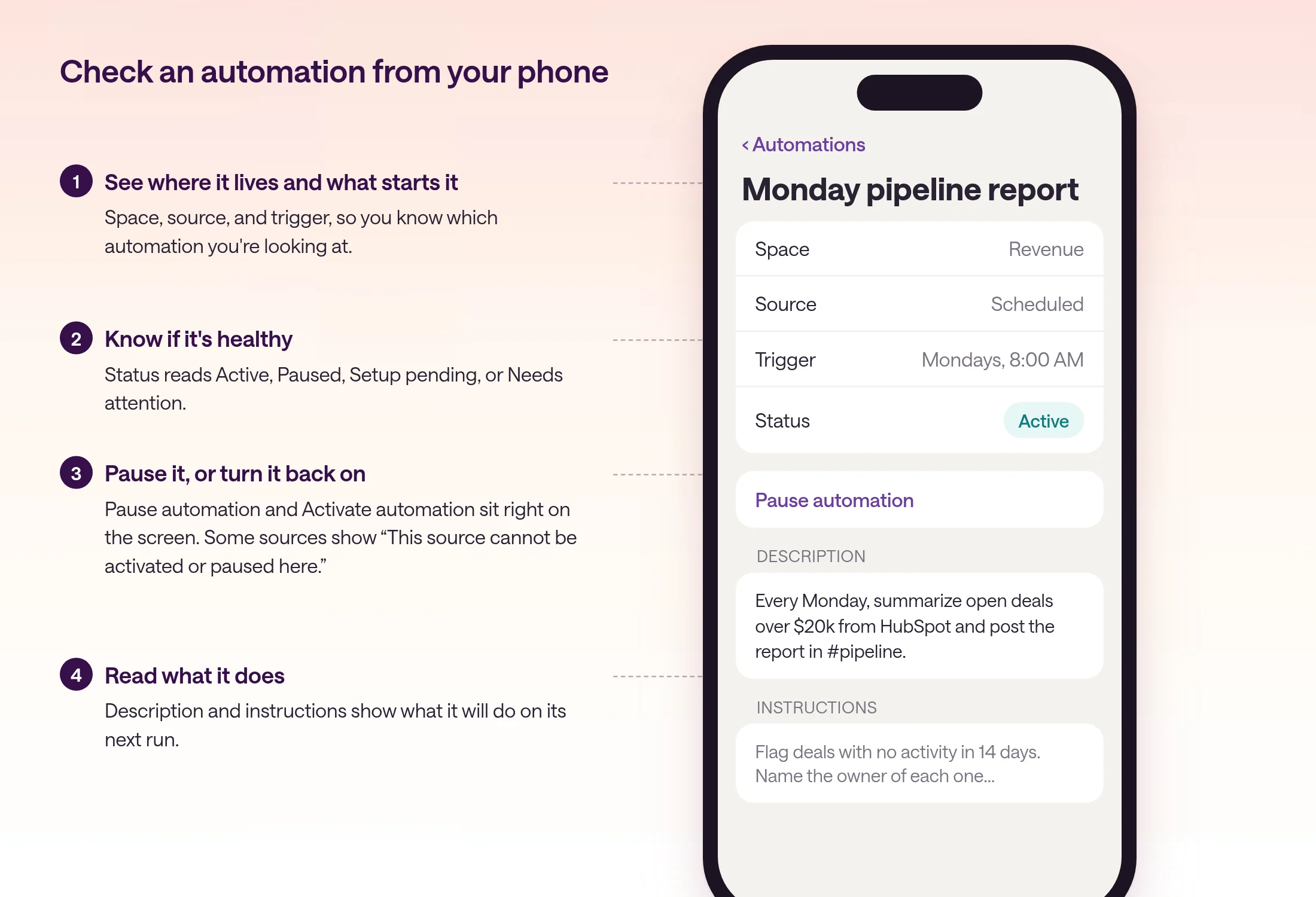
In the app, open Spaces, then Automations. Search by name, or filter to Active or Paused.
- 2
Check its status
Open it to see its Space, source, trigger, and status. Needs attention means it needs someone to look at it before it runs normally again.
- 3
Pause or activate it
Choose Pause automation to stop the next run, or Activate automation to turn it back on.
What are good ways to use AI agents from your phone?
Ask for anything you'd ask on the web. Phone requests work best when they're short and outcome-focused: a number, a summary, a draft for approval, or a check on something already running.
Sales: before a meeting, ask for a briefing on the account you're about to see. The Pre-Call Briefing skill in the Skills Library is built for this.
Leadership: approve or redirect work from your inbox between meetings, without opening a laptop.
Operations: share a photo of a delivery note or a PDF invoice into a thread and ask the agent to check it against the order.
Marketing: forward a competitor's post from Safari into your research channel with the share sheet, and ask what changed.
Try the Pre-Call Briefing skill for meeting prep, and browse the Skills Library for more.
Try this from your phone
I'm walking into my 2:00 PM with Brightline. Give me the deal stage, the last three emails, any open support tickets, and one question I should ask. Keep it short enough to read in a minute.
What is team chat next to your agents?
Team chat is a people-only chat that opens beside an agent thread. You and your teammates can talk through the work without prompting the agent. The agent reads along as context, but it never replies there.
Before, a thread was one stream. Discussion between people and prompts to the agent were mixed together, so you had to remember to switch the agent off before a side conversation and back on afterward.
Now the two sit side by side. The thread composer always talks to the agent. Team chat is where people decide what to do about its answer. The agent can still use that discussion as context the next time you prompt it, so you don't have to repeat what the team agreed.
It's for any team that reviews agent work together: a sales lead and an account owner checking a forecast, a marketer and a designer reviewing a draft, or an engineer and a PM triaging a bug the agent found.
Use cases: agree on which flagged deals are real before the agent updates the forecast, collect feedback on a draft from three people before asking for one revision, or ask a teammate a quick question about a number without derailing the agent's work.
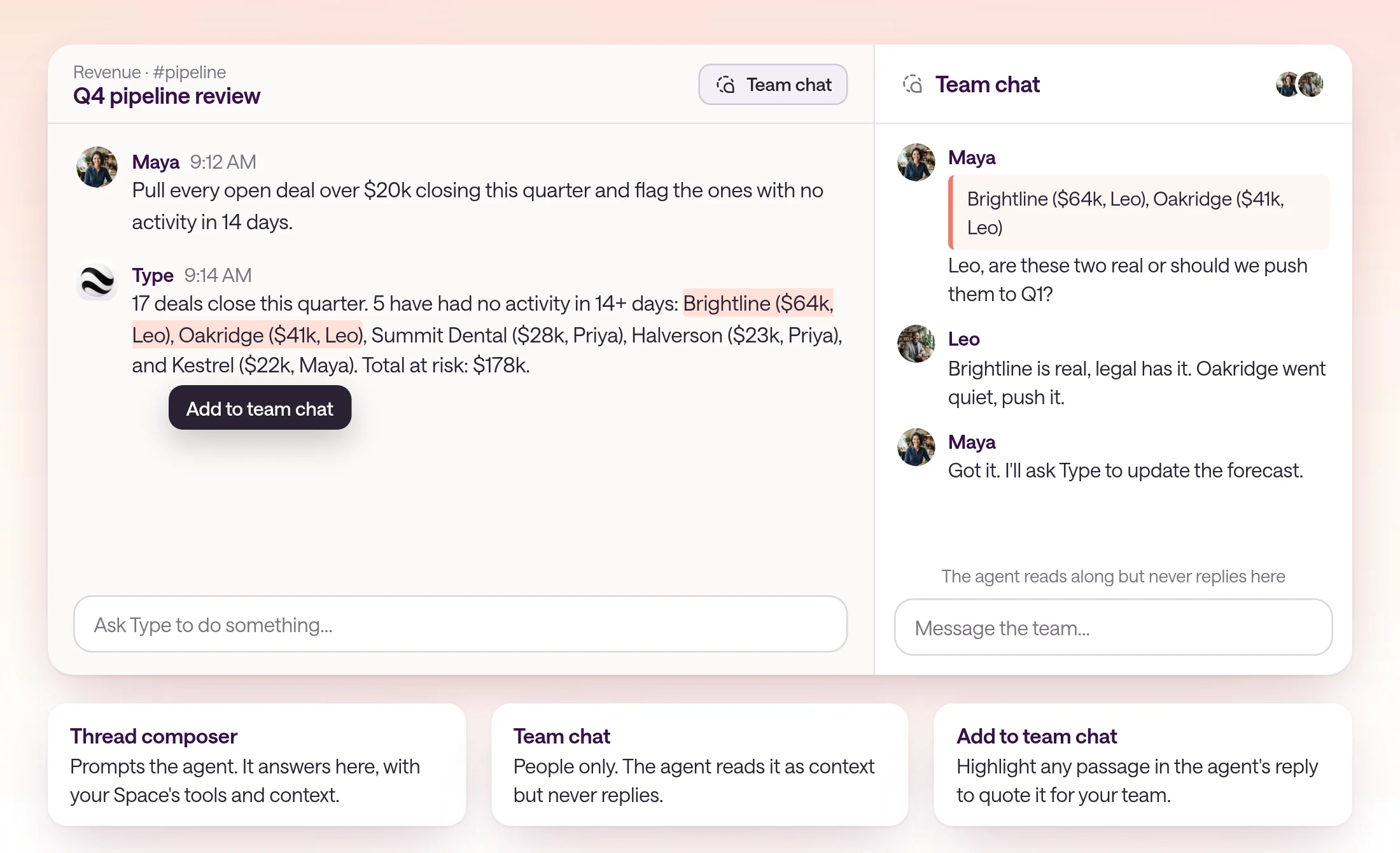
How do you use team chat and Add to team chat?
Open a thread in a channel and choose Team chat in the thread header, or press Cmd+J on Mac or Ctrl+J elsewhere. To quote the agent, highlight text in its reply and choose Add to team chat.
Limits: team chat is part of the Type.com web app and lives in threads inside a Space channel. Messages in team chat never start an agent reply and never change which model the thread uses. Team chat messages aren't sent to an email sender who started the thread.
Read more about how threads work in the docs, and watch the team chat demo.
- 1
Open a thread in a channel
Team chat belongs to a thread in a Space channel, next to the agent's work.
- 2
Open team chat
Choose Team chat in the thread header, or press Cmd+J on Mac or Ctrl+J elsewhere. A badge shows how many new team messages you haven't seen.
- 3
Quote the agent's answer
Highlight a passage in the agent's reply and choose Add to team chat. It's staged in the team chat composer, so you can add your question before sending.
- 4
Decide together
Discuss it with your team. The panel reads “The agent reads along but never replies here.”
- 5
Prompt the agent
When you've agreed on the next step, send it from the thread composer. The agent picks it up with the team's discussion as context.
How do you steer an AI agent mid-task?
Send a follow-up while the agent is still working on your request. It joins the running reply, keeps the same model and settings, and changes course without starting over.
Everyone has hit Enter and then realized the prompt was off. Before, the fix was to stop the reply and start again, losing the work in progress. Now you send the correction, and the agent folds it into what it's already doing.
It's for anyone who runs long tasks: a report that pulls from four tools, a code change, or a research pass that takes a few minutes. Steering saves the restart, and the tokens and time it would have cost.
Use cases: narrow a search once you see the first results (“only deals closing this quarter”), add a forgotten requirement (“also include the owner of each deal”), or correct a wrong assumption (“the fiscal year starts in February”).
Limits: steering is rolling out by organization. Only the person who started the running reply can steer it. If you change the model, reasoning, or speed in the composer, that change applies to your next turn, so to use new settings right away, stop the reply and send a new request.
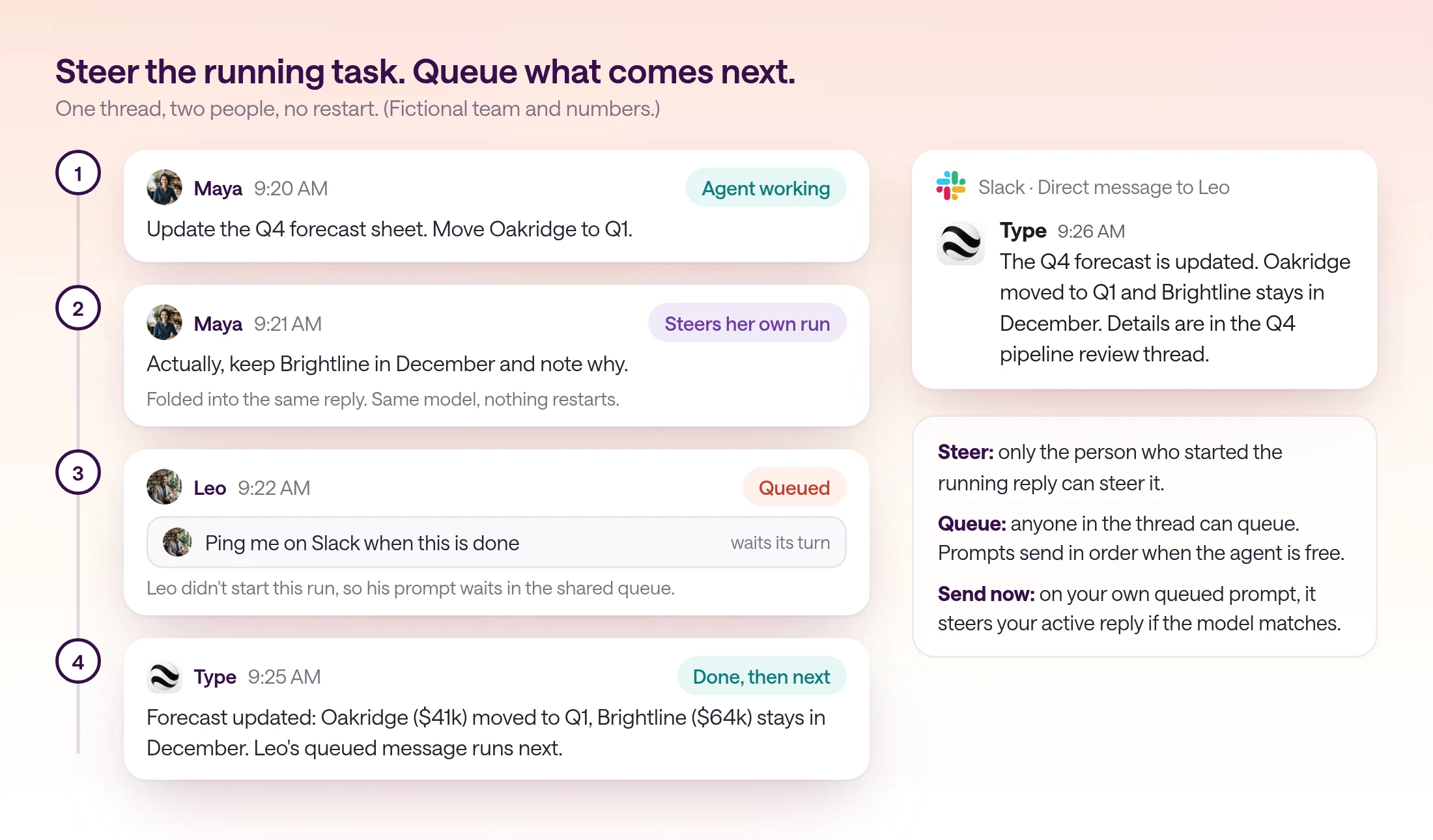
- 1
Start the task
Send a request from the thread composer as usual. The agent starts working.
- 2
Send the correction
While it's working, type the correction and send it. Your message joins the active reply instead of starting a new one.
- 3
Watch it adjust
The agent keeps the same model and settings and adjusts its work. There's no restart.
How does queuing work when teammates share a thread?
Choose Queue from the composer, or press Cmd+Enter on Mac or Ctrl+Enter elsewhere while the agent works. The prompt waits in a shared queue above the composer and sends automatically when the agent is free.
The queue is shared, so it works with more than one person in the thread. When a teammate sends a prompt while your request is running, it doesn't interrupt you. It waits its turn, then runs with that teammate's own access. That's how a line like “ping me on Slack when this is done” can sit right behind your request.
Use cases: line up a follow-up (“now draft the email to the account owners”) before the current step finishes, let a teammate add their request without waiting for you, or stack a notification at the end of a long job.
Limits: queuing is available where steering is available for your organization. Queued prompts send in order. If someone else's prompt is ahead of yours, yours waits for it.
It works from Slack too. In a Slack thread connected to Type, a reply from the person who started the work steers it (👀 🛞), and a separate task queues (👀 🚂). See Slack in the docs and the Slack integration.
Full details are in the composer docs. Watch the steering and queuing demo to see it in action.
- 1
Queue a prompt
While the agent is working, choose Queue from the send menu, or press Cmd+Enter on Mac or Ctrl+Enter elsewhere.
- 2
Review the queue
Queued prompts appear above the composer with the author's avatar. You can edit your own before it sends.
- 3
Send now, if it can't wait
Choose Send now on your own queued prompt to steer the reply you started, as long as the model matches. Otherwise it starts its own turn after the current work.
What did we build in the live code review session?
Fletcher and Komran rebuilt the Claude Code team's code review system from scratch, live, then added a bug loop that picks up reported bugs, fixes them, and sends back a video of the fix.
If you missed the session, the full recording is a good look at how agents and code split the work in a real system: anything that can run as code does, so the system stays fast and cheap, and agents handle the judgment calls.
Watch the full recording on YouTube, or read the session notes on the Automate code review live build page. To try it on your own repositories, connect the GitHub integration.
What should you try first?
Download the iPhone app and turn on notifications so approvals reach you anywhere. Then, the next time you work on an agent's answer with a teammate, open team chat, and steer instead of restarting when a prompt is off.
- The Type.com iPhone app is free on the App Store and needs iOS 26.2 or later.
- Message agents, follow approvals, and pause or activate automations from your phone.
- Team chat sits beside the agent. The agent reads it but never replies there.
- Steer your own running reply instead of restarting it.
- Queue the next prompt, and teammates can queue theirs in the same thread.
Frequently asked questions
Is the Type.com iPhone app free?
Yes. Type.com: AI Agents for Teams is free on the App Store for iPhone and iPad. It needs iOS 26.2 or later and a Type.com account.
Can I manage automations from the iPhone app?
Yes. Open Automations from Spaces to browse and search them, check whether each one is Active, Paused, or Needs attention, and pause or activate it. Some sources can't be paused from the app, and the app says so on that automation.
Does the agent reply in team chat?
No. Team chat is for people. The agent reads team chat messages as context, but it never replies there. To get the agent to act, send your message from the thread composer.
Can a teammate steer my agent while it's working?
Steering is for the person who started the running reply. If a teammate sends a message while your agent is working, it goes into the shared queue and runs after the current work finishes, with that teammate's own access.
What happens to a queued message?
Queued messages wait above the composer and send automatically, in order, when the agent is free. You can edit your own queued message before it sends, or choose Send now to steer your own active reply if the model matches.
Does steering work from Slack?
Yes, when steering is available for your organization. A Slack reply from the person who started the work can steer it, and Type reacts with 👀 and 🛞. Other replies queue, and Type reacts with 👀 and 🚂.